
Free video editor for desktop
Instagram Edits on Desktop
+ Claude AI
The Instagram Edits desktop app is finally here: Instagram’s free video editor now runs on Mac. The Mac app launched on 5 November 2026 with a full multi-track timeline, colour grading and 4K exports with no watermark. And there’s a twist most people missed: you can connect AI agents like Claude to it, so AI can help with your edits. Here’s how to install Instagram Edits on desktop, what it can do, and how the AI part works.
On this page
What is the Instagram Edits desktop app?
Edits is Instagram’s free video editing app. Until now it only worked on phones. The new desktop version gives you the same app with far more room: a bigger timeline, a mouse and keyboard, and tools that are hard to use on a small screen. You can publish straight to Instagram or export the video for any other platform.
| Question | Answer |
|---|---|
| Price | Free, no subscription |
| Computer | Mac with Apple silicon (M1 or later) |
| Windows | Not available yet |
| Account | Sign in with your Instagram account |
| Export | Up to 4K, no watermark, vertical or horizontal |
| AI agents | Supported through MCP (Model Context Protocol) |
How to install Instagram Edits on Mac
Installing the Instagram Edits desktop app takes about 5 minutes:
- Check your Mac: click the Apple menu → About This Mac. The chip should say M1, M2, M3, M4 or newer. Intel Macs aren’t supported.
- Go to the official Edits for Mac page and click “Get Edits for Mac”.
- Open the downloaded .dmg file and drag Edits into your Applications folder, like any Mac app.
- Open Edits and sign in with your Instagram account. Your saved audio and text styles from the phone app appear automatically.
- Optional: set your own keyboard shortcuts, or import the shortcuts from the editor you already use.
What can Edits do on desktop?
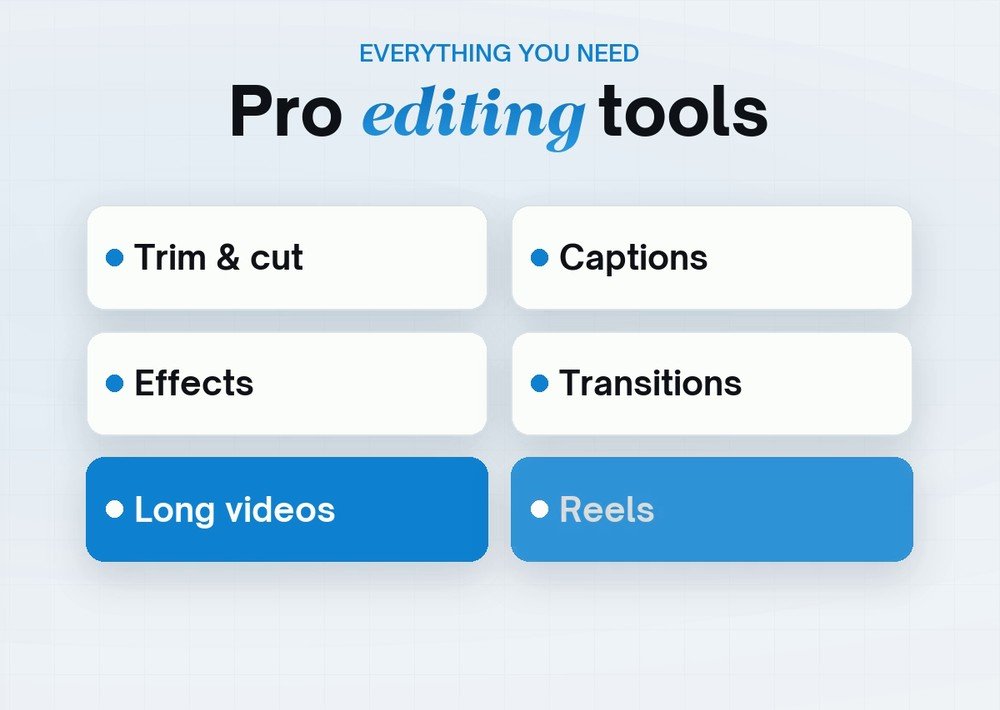
- A multi-track timeline for layered clips, audio and text
- Keyframes for smooth, moving transitions
- Audio waveforms, so you can cut exactly on the beat
- Colour wheels, curves and log conversion for a proper colour grade
- Import your own LUTs (colour presets) and fonts
- Instagram’s licensed music library, sound effects and video effects
- Unlimited automatic captions in multiple languages
- Publish to Instagram with tags, location and trial Reels, or export in 4K
How to post a Reel from Edits on Mac
- When your edit is ready, click the publish option to post straight to Instagram. You can tag people, add a location, or post it as a trial Reel (shown to non-followers first, so you can test it).
- To post somewhere else, like YouTube, export the video instead: Edits exports in up to 4K with no watermark, in vertical or horizontal format.
- Tip: Edits doesn’t yet let you continue the same project on your phone, so finish each video on one device.
How to edit videos with Claude AI in Edits
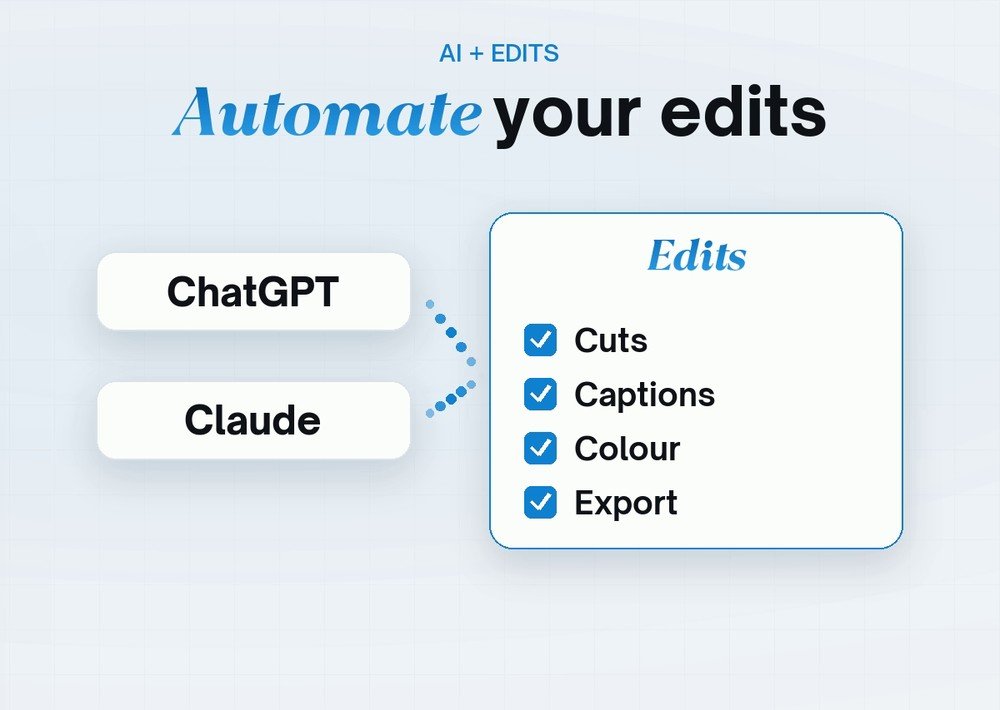
This is the most exciting part. Edits on desktop supports MCP (Model Context Protocol), the open standard that lets AI assistants use an app’s tools. Once it’s switched on, an AI agent such as Claude can use Edits’ editing tools for you.
What the AI can do
Instagram says its MCP connection covers the tools inside Edits. In practice, the AI builds a rough edit (cuts, captions and structure), then you open the project in Edits to check it and add your finishing touches. Think of it as an assistant editor that does the first draft, not a button that does everything.
How to connect Claude
- In Edits, open Settings and turn on MCP (agent access).
- Use the connection details Edits shows you to add it to your AI app: in Claude Desktop, add it as a connector or MCP server; in Claude Code, add it as an MCP server.
- Restart Claude, then ask it to work on a project, for example:
Use Edits to make a rough cut of the video in my Downloads folder: remove the silences, add captions, and keep it under 30 seconds for an Instagram Reel.Meta is updating Edits every week, so the exact settings may change. I’m testing the Claude connection step by step and will add screenshots here.
On Windows? Edit with Claude Code instead
Edits on desktop is Mac-only for now. On Windows, you can still let Claude edit your videos: Claude Code can cut clips, clean up your voice, add captions and sound effects, and export a finished Reel, all from your project folder. I edit my own Reels this way, including my AI clone video.
Want 25 more free AI prompts?
Get my free Starter Prompt Pack: 25 copy-paste prompts for AI photos, videos and ChatGPT, sent straight to your inbox.
Want personal help?
Book a 1:1 AI video session with me on Google Meet. We’ll fix your prompts or build your workflow together.
See 1:1 sessionsFound this useful?
Share it with a friend, or get new AI prompts and trends first on my WhatsApp channel.
FAQ
Is the Instagram Edits desktop app free?
Yes. Edits for Mac is free to download, needs no subscription, and exports videos with no watermark.
Is there an Instagram Edits app for Windows?
Not yet. Edits on desktop only works on Macs with Apple silicon (M1 or later). Instagram hasn’t announced a Windows version.
Can Claude edit videos in Instagram Edits?
Yes, through MCP. Edits on desktop lets AI agents like Claude use its editing tools to build a rough edit, which you then refine in the app.
Do my projects sync between the Edits phone app and the Mac?
Partly. Your saved audio and text styles sync, but you can’t edit the same project on both devices yet. Instagram says it’s working on it.
Can I export horizontal videos for YouTube from Edits on Mac?
Yes. The desktop app supports vertical and horizontal formats and exports in 4K.