
Beginner’s guide · 2 methods
How to Make an
AI Lip Sync Video
An AI lip sync video makes a person’s mouth move perfectly in time with a song or voice. I make these videos for my Instagram, @jasdeep.ai, and for music clients, and in this guide I’ll show you the two methods I use, with real examples, prompts and the mistakes to avoid.
In this guide
Some links on this page are affiliate links (Pollo AI and Beeble). If you sign up through them, I may earn a small commission at no extra cost to you.
What is an AI lip sync video?
Lip sync means matching mouth movements to sound. An AI lip sync video uses AI to either create those mouth movements for a new person, or to keep a real performance while changing everything around it. Both can look completely real when done right.
Which AI lip sync method should you choose?
- Method 1: Replace the person in a video. Best when you want to put yourself into a famous or viral clip. AI creates the new lip sync, so you need a strong prompt and a clear reference photo.
- Method 2: Keep your real performance and change the scene. Best when you can record yourself singing or talking. The lip sync is perfect because it’s your real mouth movement; AI changes the location, lighting and background.
If you’re new to this, start with Method 2. It’s the easiest way to get a flawless AI lip sync video.
Method 1: Replace the person in a video (Pollo Recast)
This is how I made my viral subway lip sync video. You upload a source video and a reference photo, and the AI replaces the performer while keeping the song, moves and camera cuts.
- Find a short source video (5–15 seconds) where the singer’s face is clear and well lit. Use clips you have the rights to use.
- Take one clear, full-body reference photo of yourself on a plain background.
- Open Pollo AI and choose the Recast tool.
- Upload the source video and your reference photo.
- Paste a detailed prompt that tells the AI to keep the original audio and match the lip sync syllable by syllable.
- Generate, then check the mouth closely on words with M, B and P sounds. If the lips drift, regenerate.
Here’s the lip sync part of the prompt I use:
Keep the original song from Video 1 exactly: same vocals, lyrics, rhythm and timing, with no new music or voices. The person sings every line the source performer sings, with mouth shapes matched syllable by syllable: lip closures on M, B and P sounds, open mouth on long vowels, natural jaw movement and visible breathing. Their lips stay in sync while they move, with no lag, drift or frozen mouth.For the full prompt with every shot, see my AI lip-sync video prompt. For a three-person version, try the Gangnam Style AI video prompt.
Method 2: Keep your real performance and change the scene (Beeble)
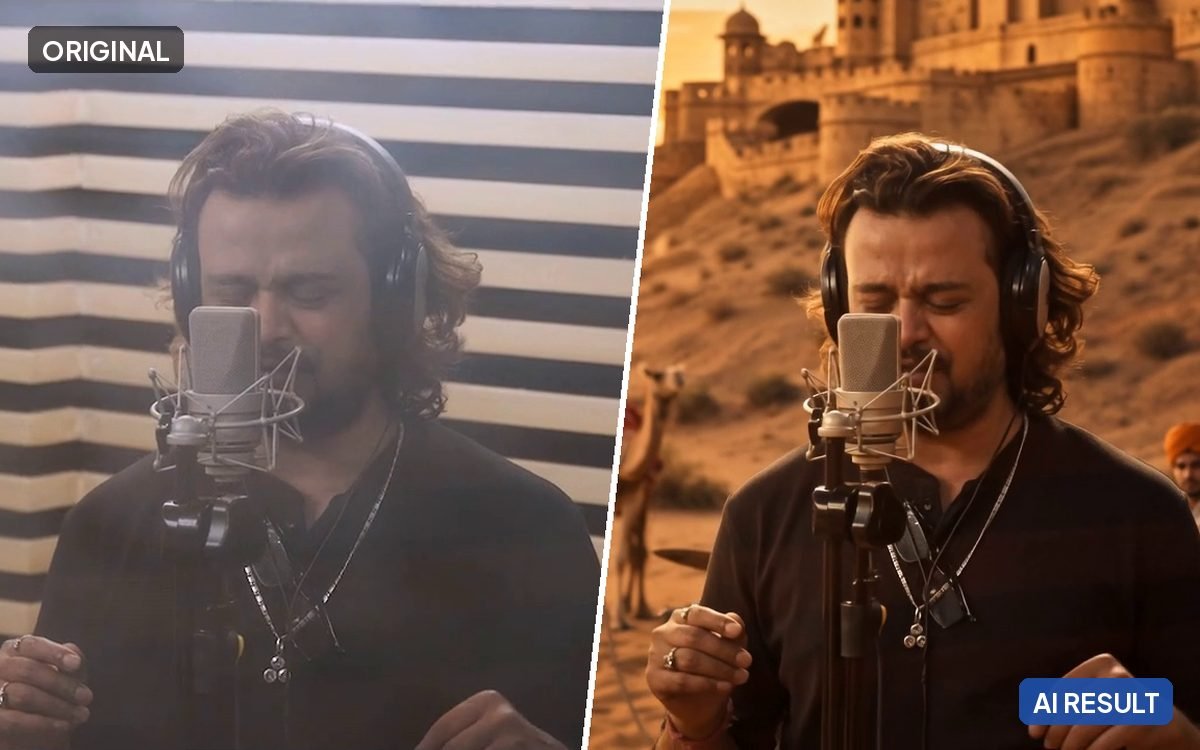
This method keeps your real singing and replaces the world around you. In my example, a singer recorded in a normal studio, and AI moved the whole performance to a Rajasthan desert at sunset, with a fort, camels and folk musicians. The lip sync is perfect because nothing about the performance changed.
- Record your performance: face the camera, use soft even light, keep the camera steady and make sure your mouth is clearly visible.
- Open Beeble, choose SwitchX and upload your video (trim it first; SwitchX 2.0 takes up to 20 seconds). Use the Auto mask mode, which keeps you as the subject and generates everything around you.
- Add a reference image of the new scene, ideally a frame from your video with you placed in the new location and lit the way you want (the built-in Create with AI tool can make one from a frame). Then describe the environment, lighting and mood in the prompt.
- Generate a quick test at 720p, then review the result for flicker, edge problems around your hair and hands, and whether the new lighting matches your face. When you like a take, render it at a higher resolution.
- Export and add your original audio if needed.
Here’s how I describe a new scene (fill in the [brackets]):
[Location] at [time of day], [2–3 background details, e.g. a sandstone fort on the hill, camels and folk musicians]. Warm [light direction, e.g. sunset light from the left] that matches the light on the performer's face. Light [atmosphere, e.g. dust in the air]. Keep the performer, microphone and clothing exactly as they are. Realistic, cinematic, natural colours.Tips for a perfect AI lip sync video
- Use clean audio. Background noise and music bleed make the AI’s job harder.
- Keep the mouth visible. A microphone or hand in front of the mouth can cause blurry or odd mouth shapes.
- Face the camera. Fast head turns and side profiles are where lip sync breaks first.
- Keep clips short. 5–15 seconds per clip gives the most stable results; join clips in your editor.
- Check the details at full size: teeth, lip closures and the corners of the mouth.
Common AI lip sync problems and how to fix them
- The lips lag behind the audio: trim the start of the clip or shift the audio a few frames in your editor.
- The mouth looks blurry or smudged: use a higher-resolution source and make the face larger in the frame.
- The face changes between shots: use a clearer reference photo and describe the same features in every prompt.
- Teeth or lips look strange: add “distorted mouth, extra teeth, lip-sync lag” to your negative prompt and regenerate.
- The new scene’s light doesn’t match: describe the light direction and colour so it matches the light on the face.
Frequently asked questions
Can I make an AI lip sync video for free?
Many AI video tools offer free credits or trials, so you can test both methods without paying. Limits change often, so check each tool’s current plan before a big project.
Which tool is best for AI lip sync videos?
It depends on the method. To replace a person in a video, I use Pollo AI’s Recast tool. To keep a real performance and change the scene, I use Beeble. Test your own clip in both and keep whichever looks more natural.
Can I use any song in my AI lip sync video?
Only use music you have the rights to, such as your own songs, licensed tracks or the music libraries inside Instagram and YouTube. Popular songs uploaded elsewhere can be muted or removed.
Why does my AI lip sync look off?
Usually it’s the source: noisy audio, a covered mouth, fast head turns or a face that’s too small in the frame. Fix those first, then regenerate.
Want personal help?
Book a 1:1 AI video session with me on Google Meet. We’ll fix your prompts or build your workflow together.
See 1:1 sessionsMore AI video guides and prompts
New to AI video? Start with my beginner’s guide on how to make realistic AI videos, try the free AI prompt builder, or browse the free AI prompt library.